RULE-BASED ROUTING · APP STORE

ShadowrocketRules & Guide

A rule-based proxy client for iOS / iPadOS, available as a one-time purchase on the App Store. This official guide covers importing existing configurations, rule-based routing, and connection checks.

RuleOn DemandVLESS
default.conf

DOMAIN-SUFFIX,example.com,PROXY

01 / RULE REFERENCE

How rules, connections, and configurations work together

Start by separating where a connection goes from which requests use it. Server entries store connection details; Config stores routing logic; Global Routing determines the active mode. Identify which layer you are changing to avoid treating a rule issue as a protocol failure or repeatedly replacing server details that already work.

Rule: match first, then apply a policy

Check the rule order in Config. Requests are evaluated from top to bottom, and the matching rule applies its policy. Put specific domain conditions before broader ones, and use FINAL as the fallback at the end. The snippet on the right demonstrates a domain suffix, a geographic IP condition, and a final policy; it is not a complete configuration for every network. PROXY still requires a working proxy destination, while DIRECT depends on whether the current network can reach the destination. After making changes, check the connection log to confirm which rule matched rather than relying only on the main connection toggle.

default.conf
  1. DOMAIN-SUFFIX,example.com,PROXY
  2. GEOIP,CN,DIRECT
  3. FINAL,PROXY

Global Routing:Config / Proxy / Direct

Config, Proxy, and Direct are three different operating modes. Config routes traffic according to the active configuration; Proxy sends typical requests through the selected proxy; Direct connects without a proxy. During troubleshooting, note the original selection before changing one setting temporarily for comparison. Do not confuse Proxy in Global Routing with PROXY in a rule: the former is the active operating mode, while the latter is a policy keyword applied when a rule matches.

If access works in Proxy but fails in Config, check the rules, policy references, and DNS resolution path first. If both modes fail, check the server details and network conditions. Switching modes can help narrow down the cause, but it cannot fix invalid authentication or guarantee that a destination is reachable. Restore the original setting after testing so a temporary troubleshooting state does not become your long-term configuration.

See Global Routing and settings guide →

Check rule matching with a single request

Do not start by replacing the entire configuration. Choose a destination you can access repeatedly, note the network, operating mode, and selected server when the issue occurs, then check which rule matched. DOMAIN matches a specific domain, DOMAIN-SUFFIX covers a domain suffix, and IP-CIDR targets an address range. Different conditions can produce different matching results.

REJECT blocks requests that match, but a domain-level rule cannot distinguish between all the different uses of the same domain. If a page loads but its images, sign-in, or media do not, check whether related resources were blocked by mistake. USER-AGENT matching also depends on whether the request contains identifiable information; do not assume all encrypted traffic can be matched by this field. More specific rules make it easier to understand their impact and undo changes.

Browse the troubleshooting guide by symptom →

02 / DEVICE & STORE

Getting Shadowrocket on iPhone and iPad

Shadowrocket is a paid client for Apple platforms and is available exclusively on the App Store. Before purchasing, open the product page on the device you plan to use and check its availability, price, and compatibility in your store. Refer to the App Store listing for system requirements and purchase compatibility. Do not identify an app by its name in search results alone, and do not assume the guide’s examples are included as default settings after purchase.

iPhone

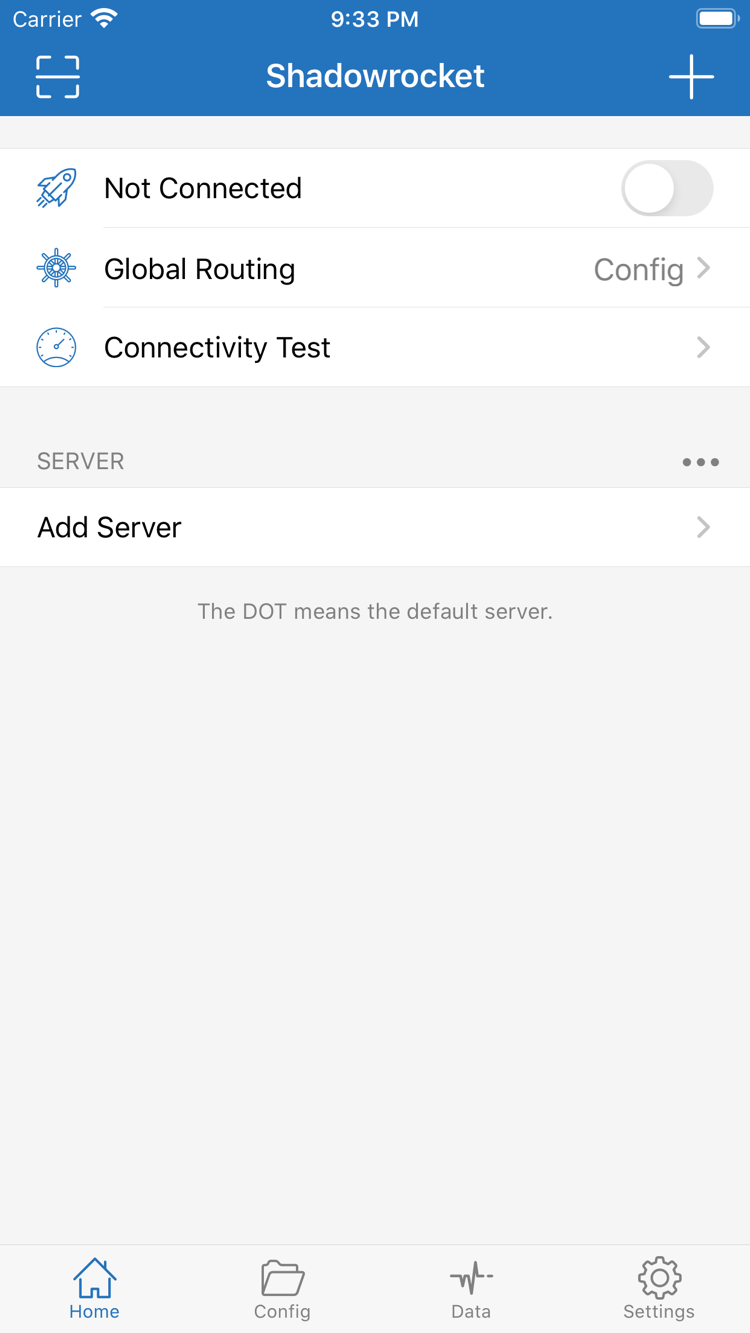
After purchasing and installing from the App Store, open Home and check how to import an existing server or subscription. When you connect for the first time, the system may ask to add a VPN configuration. Review the system prompt and authorize it only after confirming that Shadowrocket initiated the request. This permission enables a system network connection; it does not verify that the server details are valid.

Import, select, and test your configuration on a stable network first, then check how it behaves when you switch networks. If the connection switch turns on but you cannot access the destination, check Global Routing, the selected entry, and Config instead of repeatedly tapping the connection switch.

See how to get Shadowrocket and open it for the first time on iPhone →

iPad

You can find and redownload the app from your purchases using the same Apple ID. Refer to the App Store listing for purchase compatibility. After downloading, check the server entries and active configuration actually stored on your iPad. Restoring the app and restoring its configuration are separate processes; seeing the app icon does not mean your connection data has been transferred.

The larger display may change where lists and details appear, but the checks in Home, Config, and Settings are the same. After syncing data with iCloud, confirm the selected entry, policy references, and active mode before testing the connection.

See purchase restoration and configuration guidance for iPad →

Check the product page before you buy

This button opens Shadowrocket’s App Store product page. Use the local-currency price, compatibility information, and purchase prompts shown there as the current reference. If the page is unavailable, first check the account’s store region and product availability rather than assuming there is a device problem.

See the purchase steps →
On the App StoreDownload Shadowrocket
One-time purchase App ID 932747118 See the App Store listing for system requirements

What to check after installation

First, have your existing subscription or server details ready and decide whether to use Subscribe, Scan QR Code, or manual Add Server. Next, select the specific entry after importing and check its Type and required parameters. Then confirm Global Routing and the active Config before connecting and testing an actual destination. Handling one layer at a time helps distinguish missing imported content from incorrect server details or a rule that did not match.

Do not add many rules, automatic connection triggers, and other settings before verifying a basic connection. Keep a working baseline configuration, then add the features you need one at a time. For the complete setup flow and common failure points, see the getting started guide. For system authorization prompts, connection timeouts, or DNS issues, follow the relevant section in the troubleshooting guide.

03 / PURCHASE FACTS

Verify the app and understand the one-time purchase

Shadowrocket is a closed-source commercial app. This official website and guide explain how to find the app using details you can verify on the App Store; a similar name is not proof of identity. Before purchasing, check the developer, official icon, and app ID. After installation, manage updates and purchase history through the App Store. Manage connection details separately according to your own configuration.

Official Shadowrocket app icon

Three details to verify in the App Store

App name
Shadowrocket
Developer
Shadow Launch Technology Limited
App ID
932747118

The id932747118 at the end of the product page URL corresponds to the app ID. Check the icon, developer, and ID together.

See the step-by-step verification guide →

Search results do not verify an app’s identity

Search results may include apps with similar names or icons. Open the product details and check that the developer is Shadow Launch Technology Limited, then compare the official icon shown here and the app ID on the product page. The icon can help you recognize the app, but it is not enough on its own; the developer and app ID are two other essential checks. Once all three match, review the price, compatibility, and purchase information.

Even when opening the app from your purchase history, it is worth confirming its name and identity, especially if your account includes similarly named apps. Store language, search ranking, and page layout may change, but the three identity checks remain the same. This guide explains what to check; button locations depend on the current App Store interface.

Store region and account status

Whether the product appears in your store depends on the account’s store region and product availability. If the product page will not open or the app does not appear in search, first check the purchasing account and store status instead of repeatedly reinstalling the app. Prices are shown in each store’s local currency. The US storefront price mentioned here illustrates the billing model only; use the amount displayed on your device before purchasing.

For account region changes, payment methods, or purchase restrictions, follow the current App Store prompts. Being able to open a web page does not prove that the account can make a purchase. Do not assume the iCloud account signed in on a device is the same as its App Store purchasing account. To restore a purchase, check the account that actually made it.
The purchase covers use of the client

Shadowrocket is a one-time purchase. The US storefront lists it at $2.99; check the App Store page for the current price. Buying the client ≠ buying a service plan. You still need your own subscription or server details. The client reads connection parameters, applies rules, and handles requests; purchasing it does not automatically add a working server to Home.

This site does not provide, sell, or recommend nodes or subscriptions. The guide explains how to import your existing information, check that fields correspond, and troubleshoot failures. If a connection fails because remote authentication is invalid, a server is inactive, or service access has changed, check your existing service details and status. Buying the client again will not resolve it.

Restore purchases and configuration data separately

After changing devices or reinstalling, use the original purchasing account to find Shadowrocket in App Store purchases, verify the app, and download it again. If the button still shows a price, check the purchasing account, store, and purchase history before paying again. Refer to the App Store listing for purchase compatibility on iPhone and iPad, including Family Sharing.

Redownloading the app does not restore server entries or Config. Keep any necessary backup before transferring data. Afterward, check the iCloud sync results, active configuration, and server entries. Once you have confirmed that the data is complete and the connection test passes, you can clear the relevant data from your old device. See how to restore a previous purchase.

After an update, verify your usual setup first

Manage app updates through the App Store; check the product page for version information and release notes. Keep a working configuration before updating. Afterward, repeat a previously successful access test and confirm that the selected server, Global Routing, and Config still match your expectations. If only certain destinations fail, check rule matching and DNS results first. If all requests fail at once, check the system network, connection authorization, and existing server status.

A brief record of what happened is more useful than changing several settings at once. Note the network, operating mode, whether only one destination failed, and the test results, but do not include passwords, private keys, or complete subscription links. Check screenshots and text for sensitive details before sharing diagnostics. When finished, remove temporary test rules and logging settings to keep the configuration easy to maintain.

See common questions about purchasing, restoring, and using Shadowrocket →

04 / TECHNICAL NOTES

Technical notes: billing, protocols, and rule limits

These notes cover understanding costs before purchase, checking parameters in an existing WireGuard configuration, and the impact of REJECT rules. Choose the path that fits your issue: check App Store details for pricing, protocol fields for connection issues, and rules for problems affecting only parts of a page. Keeping these layers separate makes troubleshooting easier to follow.