OFFICIAL MANUAL / FIRST CONNECTION

Shadowrocket Setup Guide: Import and Connect for the First Time

Follow five steps to import your existing connection details, choose Global Routing, authorize the connection, and verify the results. Start with a connection you can check, then adjust rules and on-demand settings as needed.

iPhone / iPad 5 steps Official Guide

For your first setup, read the steps in order. If you've already imported your details, use the contents below to jump to mode selection or connection checks. For more complex issues, see the troubleshooting guide.

STEP 01 / INPUT

Add Server: Add a Server or Import a Subscribe Link

Open Shadowrocket and go to Home. Find Add Server near the SERVER section. First, identify what kind of details you have: a subscription link retrieves and maintains a list of servers, while individual server details require choosing the relevant protocol and filling in its fields. These are different input types. Don't paste a full subscription URL into Host or use a server address as a Subscribe URL.

Have a Subscription Link? Select Subscribe

  1. Tap Add Server, open the Type list, and select Subscribe. Paste your complete link into the subscription URL field and enter a name that's easy to recognize.
  2. Check that the pasted link is complete, especially the beginning, end, and query parameters. Remove any accidental spaces or line breaks. A subscription URL may contain credentials, so don't share it publicly while troubleshooting.
  3. After saving, return to Home and wait for the subscription to load, or use the update option provided for that subscription. Check that actual server entries appear under SERVER, not just a subscription name.

A successful subscription update means the app received data it could parse; it doesn't mean every entry can connect. Choose an entry you're authorized to use, check that its protocol and address look right, then continue. If the list is empty, check the subscription status and URL. Avoid adding the same subscription repeatedly; duplicate entries make later selection and troubleshooting harder.

Have Individual Server Details? Fill In the Fields for Its Type

If you have a server address, port, and authentication details, choose the matching protocol under Type in Add Server. The available fields vary by protocol. Host, Port, Password, and Method shown in the screenshot are examples from the corresponding interface, not a universal list required by every protocol. Host is usually the server's domain name or IP address; enter the port in Port. Match Password, Method, and any other authentication or transport settings to the details you have.

For protocols such as VLESS, Trojan, and WireGuard, check the required identity, encryption, or Peer parameters for that protocol. Don't guess based on fields used by other protocols. If the original details include TLS, SNI, or a transport path, enter each one in the corresponding field. Check the original configuration instructions for any parameter you're unsure about instead of switching off related options at random.

Use Scan QR Code to scan a QR code for a configuration you already have. Follow the system prompts for camera access, then review the imported details. Import from Cloud JSON imports data in the corresponding format; it isn't a general-purpose subscription option. Save, return to Home, and confirm that the server entry exists and that you can reopen its details before moving on to Global Routing.
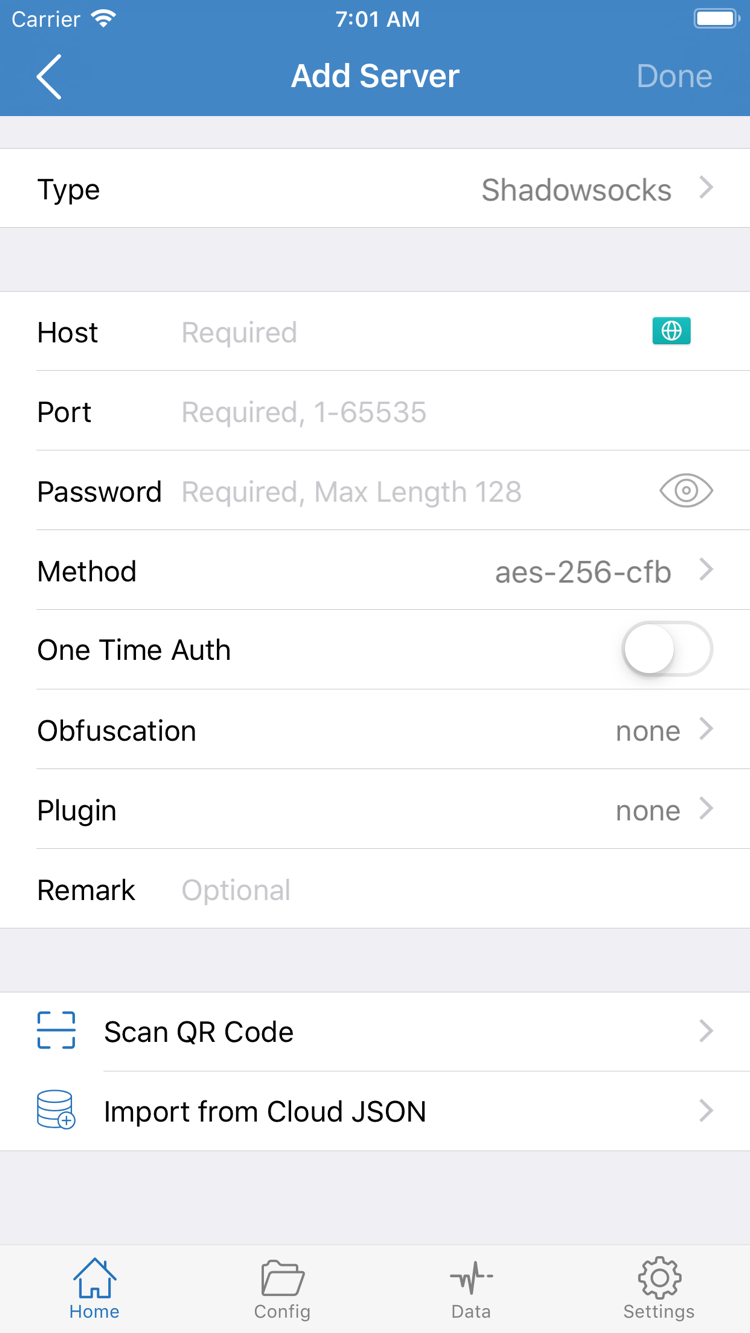
Shadowrocket Add Server screen showing Type, Host, Port, Password, Method, and import options
Add Server: Choose a Type first, then enter the details you already have. Fields vary by Type.

STEP 02 / ROUTING

Global Routing: Choose How Requests Are Routed

After adding a server, return to Home and tap Global Routing. This setting determines how requests are handled by the active configuration or connection policy; it is separate from whether the connection switch is on. Before your first setup, decide whether you want rule-based routing or a temporary check of the selected server. Don't assume an option is right for every situation based on its name alone.

ModeWhat It Does and What to Check First
ConfigMatches requests against the active configuration's rules and applies the corresponding policy. First, check the configuration and the targets it references.
ProxyRoutes requests through the proxy. This can help reduce the effect of rules when checking a basic connection, though the exact scope is still subject to app and system behavior.
DirectHandles requests as direct connections. Turning on the connection switch alone won't make destinations that require a proxy reachable.

Before Using Config, Check the Active Configuration

Go to the Config tab at the bottom and check which configuration file is selected. A server subscription and a configuration file serve different purposes: the former mainly provides connection entries, while the latter defines rules and related settings. Importing a server subscription does not replace or activate the rule configuration you need. If you need to edit a file, keep a copy of the original first. Don't add lots of unfamiliar rules just to get your first connection working.

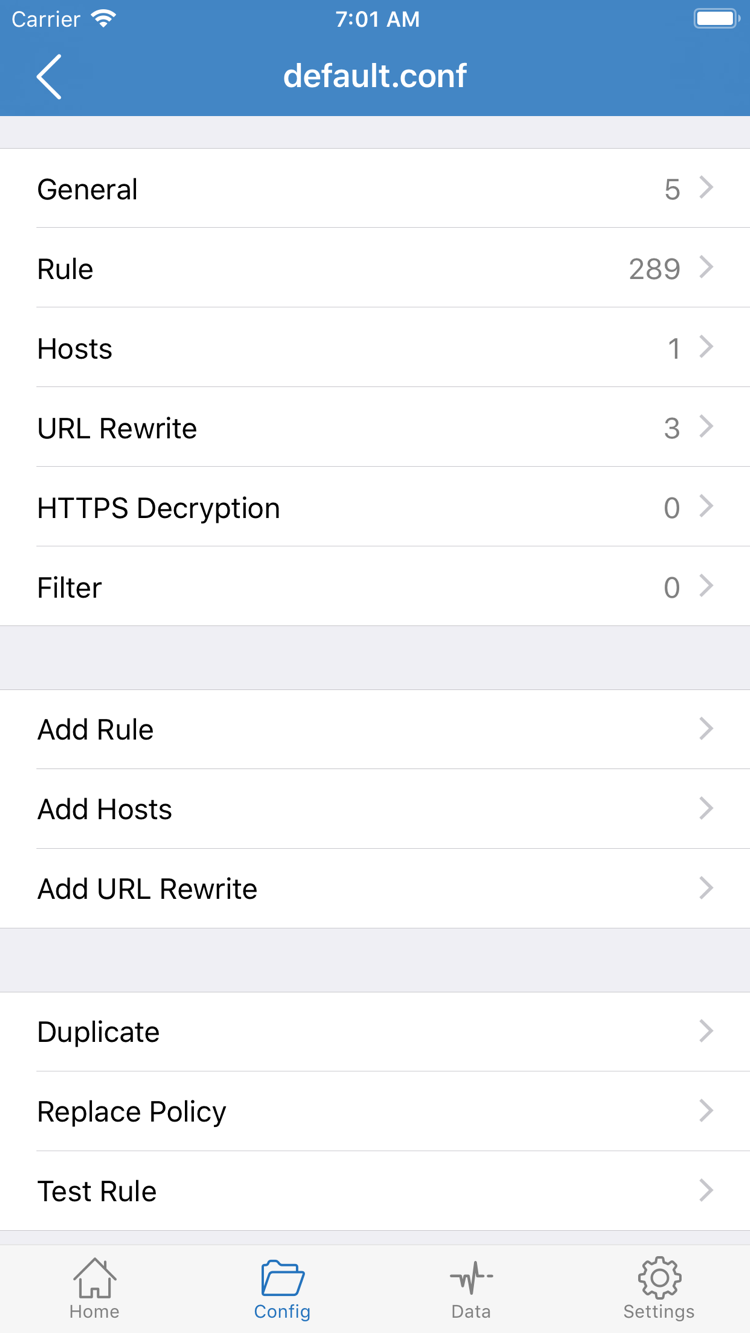
The official screenshot shows sections in the configuration editor, including General, Rule, Hosts, URL Rewrite, HTTPS Decryption, and the Add Rule option. For this guide, check only the Rule section and policy targets relevant to routing. You don't need to change other sections or enable HTTPS Decryption for your first connection.

DOMAIN-SUFFIX,example.com,PROXY
GEOIP,CN,DIRECT
FINAL,PROXY

This is an example of rule syntax, not a template to overwrite your existing configuration with. The first line matches a domain suffix and routes it to PROXY; the second matches a GEOIP condition and routes it to DIRECT; the final line is the fallback when no earlier rule matches. Rules are usually evaluated in order, and each policy name must refer to a valid target in the active configuration. Don't copy a single line without its required policy definition.

If you only want to check whether the server can connect, choose Proxy first to narrow the scope of the test. Once the basic connection is confirmed, switch back to Config to check routing. After changing the mode, return to Home and verify the displayed Global Routing value. For rule priorities and more specific matching details, see Frequently Asked Questions. Avoid changing the server, rules, and DNS all at once.

Shadowrocket Config editor showing the General, Rule, and Hosts sections, along with Add Rule
Config: Check the configuration alongside your Global Routing selection. This image shows where to edit the configuration.

STEP 03 / CONNECT

Home: Select a Server and Connect

Return to Home and check the SERVER section. Select the server you plan to use and make sure the selection indicator is on the intended entry. If subscription entries have similar names, open their details and check the address or notes to avoid choosing the wrong one. Then check Global Routing again: with Config selected, confirm that the active configuration is the file you reviewed in the previous step; with Proxy selected, confirm that the selected server details are saved.

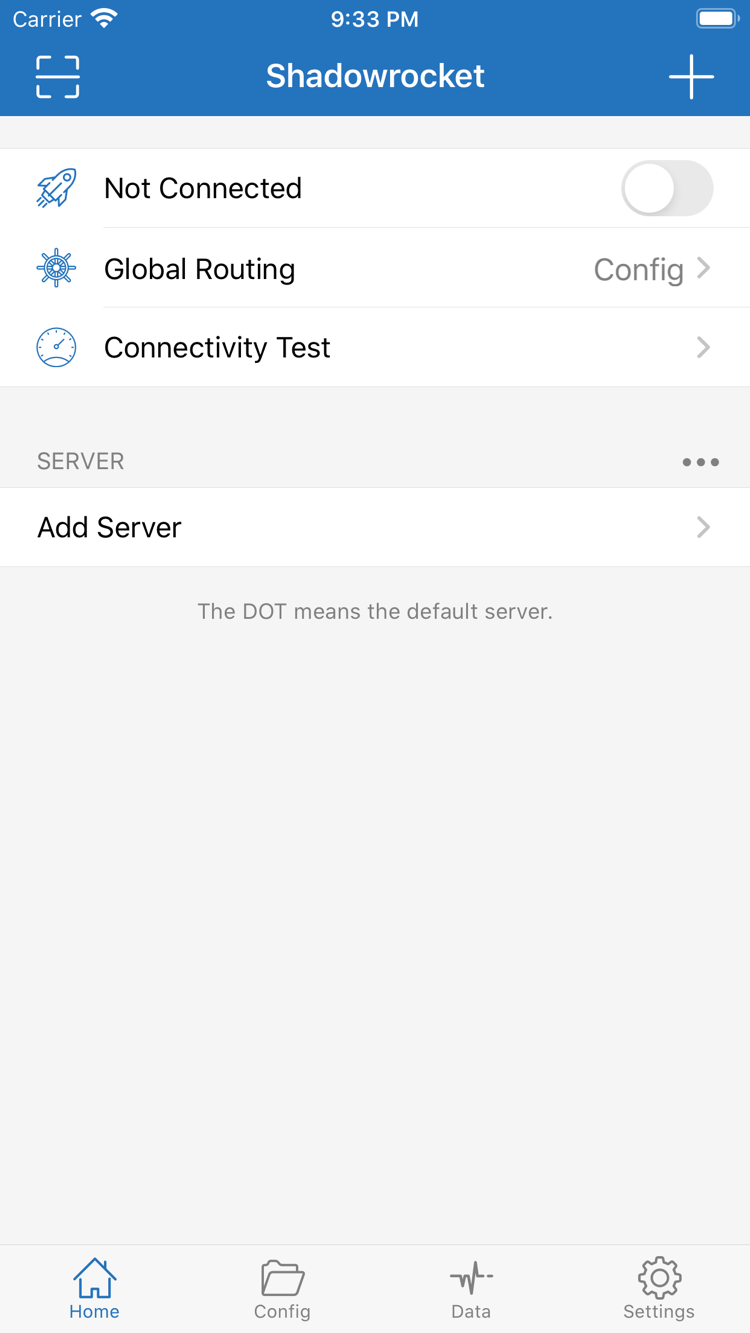
  1. Find the connection switch at the top of Home. When disconnected, the status shows Not Connected. Tap the switch to connect.
  2. The first time you connect, the system may ask to add a VPN configuration. Confirm that the request is from Shadowrocket, then follow the system prompts. If asked for your device passcode or authentication, complete it in the system dialog.
  3. Return to Home and wait for the status to change. If the switch turns off again immediately or the system request isn't completed, resolve the authorization issue first. Don't toggle the switch repeatedly.

VPN configuration authorization lets the app handle traffic using the network mechanisms provided by the system. It doesn't verify the server password or confirm that the subscription is still valid. A switch that stays on also doesn't prove that requests are working. Check system connection status and access to the destination separately; verify network results in the next step.

If another VPN connection or a device management policy is active, there may be a configuration conflict or permission restriction. Check the device's current connection and management status first. Follow workplace or school policies on managed devices, and don't delete configurations you don't recognize. If you previously declined the system request, try again in the app and check the corresponding VPN settings in the system; their location varies by system version.

On iPad, the layout may differ in landscape or Split View, but look for Home, SERVER, Global Routing, and the switch at the top. For your first connection, complete the test on the same Wi-Fi or cellular network. Avoid switching networks at the same time so you can distinguish connection issues from network changes.

Shadowrocket Home screen with Not Connected at the top, followed by Global Routing, Connectivity Test, and the SERVER section
Home: Check the selected SERVER entry and Global Routing before using the connection switch at the top.

STEP 04 / CHECK

Connectivity Test: Verify That the Connection Works

Once the connection switch stays on, run Connectivity Test from Home. First check whether the selected entry completes the test, then use a browser to visit a familiar page you're authorized to access. A test result and a real request don't answer exactly the same question: a successful test means that specific test completed, not that every domain, transport, or app request will work.

Check Three Layers, Not Just One Status

  1. Server layer: Confirm that the test is using the entry you just selected. If it times out, note the network, protocol, and result; don't change rules yet. Results from different Test Methods shouldn't be treated as directly comparable.
  2. Request layer: Open a test page in your browser, then refresh it or open a new page to confirm that content actually loads. A page still visible from cache doesn't prove the new connection is working.
  3. Rules layer: Under Config, review request records available in Data or other relevant diagnostics to check the actual domain, matched rule, and policy. Inspect the specific request rather than judging by the appearance of the page as a whole.

If access works under Proxy but fails under Config, check the matched rule and policy references first rather than assuming the server is down. Check whether the target is handled by DIRECT or REJECT, whether a broad DOMAIN-SUFFIX rule matches earlier than expected, and whether FINAL points to the intended policy. Change one thing and repeat the request so you can relate the result to the change.

If the server test succeeds but a particular page still fails, note whether the entire site is unavailable, only images are missing, or a specific feature fails. A single page may request multiple domains, and different requests may match different rules. If needed, fully close and reopen the app to reduce interference from stale connections or cache. Don't rewrite the entire configuration to fix one failing page.

Once you've verified the connection, keep the working configuration as your baseline. When adjusting rules, DNS, or on-demand settings, change one category at a time and note the original values. If the result gets worse, you can return to the confirmed setup and compare.

STEP 05 / DIAGNOSE

Settings: Troubleshoot Step by Step

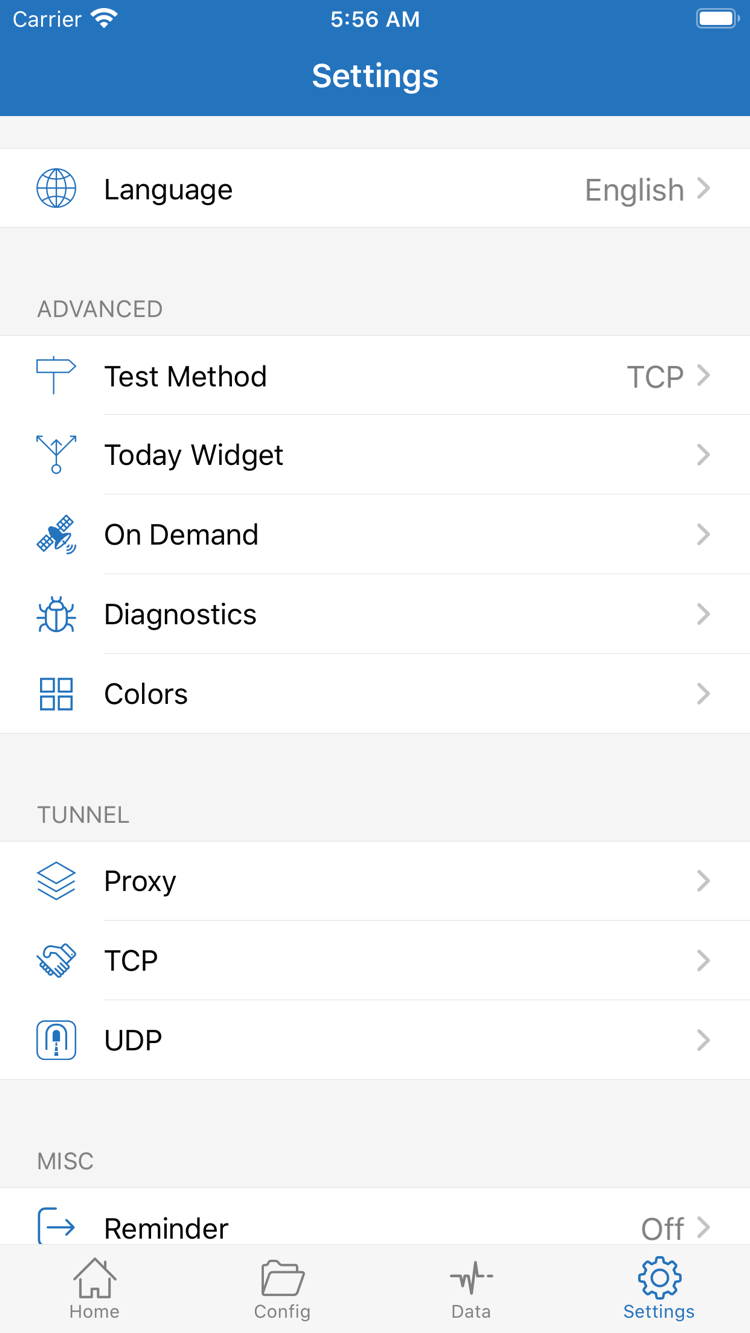
If the first four steps didn't produce the expected result, identify which layer is failing before checking the relevant settings in Settings. Available options include Test Method, On Demand, Diagnostics, Proxy, TCP, and UDP. These are not a checklist of settings you must change for your first connection. If default values or an existing configuration are in place, leave them as they are until you have a reason to change them; too many changes can obscure the original cause.

Subscription Imported, but No Server Entries Appeared

Return to the subscription entry and check that the URL is complete, accessible on your current network, and still valid. If the URL returns a web page, sign-in prompt, or error, the app may not be able to parse it as a server list. When checking the URL's purpose with the original provider, describe the error and when it occurred without sharing the full link. A subscription update may replace the entries it manages, so check where an entry came from before editing it manually.

The Switch Won't Turn On or Turns Off Immediately

First check whether the system VPN configuration request completed, then check for an existing connection conflict or device management restriction. A server timeout and a system authorization failure are different issues: changing Host or Port won't fix the switch if authorization hasn't completed. If the problem began after a system update or settings change, reopen the app and note the exact message, then follow the authorization steps in the troubleshooting guide.

The Switch Is On, but Connectivity Test Times Out

Check Host, Port, authentication details, protocol Type, and transport settings in order. Pay particular attention to letter case, spaces introduced when copying, and TLS fields. Make sure the device date and time are correct, as they can affect certificate validation. If possible, compare using another network you're authorized to use, keeping the same entry and test method each time. If only one entry fails, start by checking its original details and service status.

Fails Only Under Config, or Some Domains Don't Work

Check rules first, then name resolution. Confirm that the active configuration is correct, policy names point to valid targets, and REJECT isn't blocking a needed request. Different results for domain requests and direct IP tests may involve DNS, or the destination may require a domain name or TLS. Don't draw conclusions from a single observation. Check whether the DNS settings in the active configuration suit your network and connection method; don't try to fix the issue by entering an unfamiliar address at random.

Test Method and On Demand Can Affect What You See

Test Method determines how the relevant test is run. Results may vary with server and network conditions. Use the same method when comparing results; a failure with one method doesn't mean all traffic is failing. On Demand controls system-triggered connections under specified conditions; it doesn't define the routing policy for each request. If the connection starts again after you disconnect manually, check the existing On Demand conditions instead of treating them as a substitute for Global Routing.

For more detailed evidence, use the Diagnostics feature suited to the issue and record the failed step, test method, network type, and exact error message. Before sharing logs, redact subscription credentials, server authentication details, and personally identifiable information. This guide covers setup and troubleshooting steps but does not collect connection credentials.

If you still can't identify the cause, there's no need to keep reimporting or rebuilding everything. Keep a record of the most recent reproducible issue, then follow the troubleshooting guide for the relevant symptom. For purchases, restoring purchases, and common interface questions, see Frequently Asked Questions. For everyday use, keep the verified configuration and adjust settings one at a time as needed.

Shadowrocket Settings screen showing Language, Test Method, On Demand, Diagnostics, Proxy, TCP, and UDP
Settings: Check the options relevant to the failure. Keep the original values before comparing one setting at a time.